Find and Share Mechvibes Themes in the New Theme Library
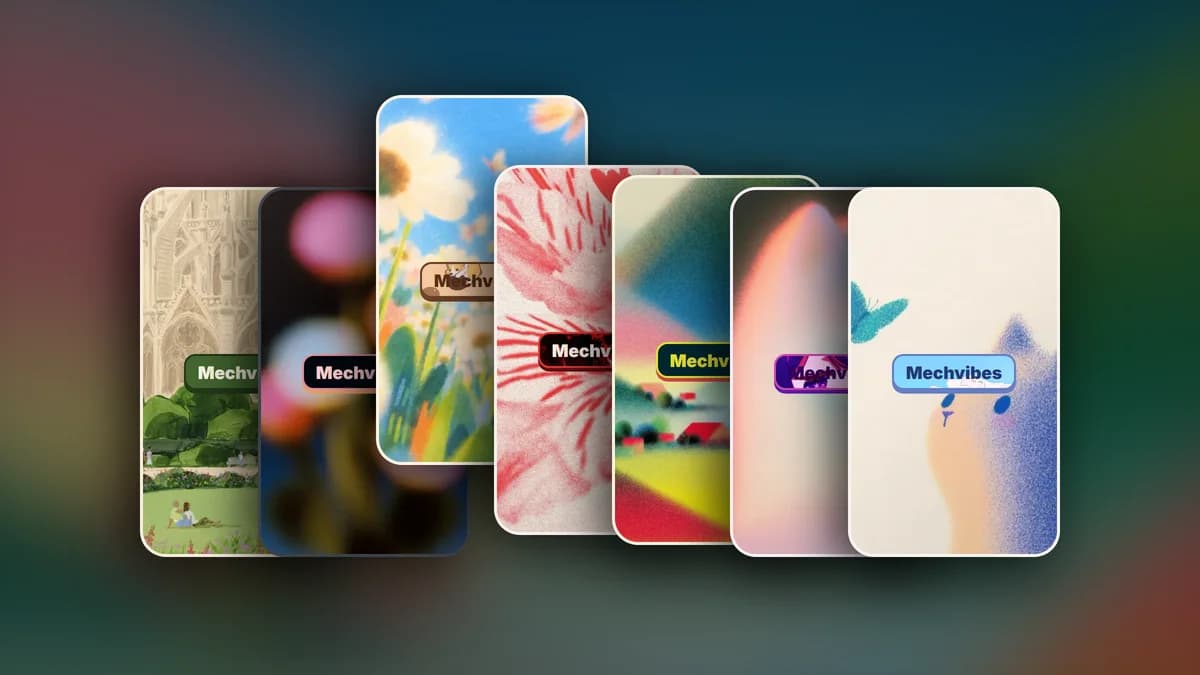
Mechvibes themes now have a home on the website. The theme library collects looks shared by the community: their colors, logo and background in one file. Browse them, install one in a click, and share your own.
A theme changes how the app looks, not how it sounds. It can carry the app's colors (one of the built-in color themes, or colors of its own), a restyled "Mechvibes" logo with its own colors or image, and a background color or wallpaper.
Browse the library
Open Themes. Each card draws the theme the way the app draws it: its background, its logo, and four dots for its main colors. You can tell what a theme looks like before you download anything.
Narrow the list on the left. Under Colors, choose themes that use one of the app's color themes or colors of their own. Under Contains, pick themes with a logo, with a background, or colors only. Sort by Newest or Popular, or search by a theme's name or its author.
Open a theme to see its page: a larger picture, its author, the parts it contains, its file size and how many people downloaded it. More themes, starting with others by the same author, are listed below it.
Install a theme
On Windows and Linux, choose Install in Mechvibes. It needs Mechvibes 3.3 or later. The app opens the theme and asks which parts to use, so you can take a theme's colors and keep your own logo, or the other way round.
On a Mac, or with an older version of the app, download the file instead:
- Choose Download file on the theme's card or page.
- In Mechvibes, open Customize, then Themes.
- Click Import, choose the
.mvthemefile and press Use this theme.
Not ready to switch? Choose Save on any theme. Saved themes wait under Saved, next to the sound packs you saved.
The app links back here too: Browse themes in Customize, Themes opens the library.
Share your theme
Make the look in the app first. The themes guide covers picking colors, restyling the logo and setting a background. Then save it as a file: in Customize, Themes, click Share, name the theme and press Save file.
On the website, choose Share your theme on the themes page and sign in. Pick the .mvtheme file. The page shows what the file holds before anything is sent. Give the theme a name and a short description, then publish.
The library checks the file the way the app checks one it imports, so anything it accepts installs cleanly. Files can be up to 10 MB, and large images are shrunk to the size the app shows them at. A file that does not pass explains why, and nothing is published until it does.
Your theme is live as soon as it is published. You can remove it later from your themes.
Share the link, not the file
Every theme gets a short link, such as mechvibes.com/t/ followed by a seven-character code. You see it as soon as your theme is published, and on every theme page under Share this theme.
Post that link on Discord rather than the file. The link unfurls into a card with the theme's picture, its name and its colors, on a blurred copy of its own wallpaper. Anyone who clicks it can install the theme in one click and see the rest of your work. You can also paste the code or the link into the search on the themes page to open the theme.
Sound packs work the same way: each pack has a short link too, starting with mechvibes.com/sp/.
What's next
The first themes are already up. If you have made a look you like, share it so others can use it. Bugs and ideas about the library are welcome on Discord.